 by
by A WordPress website can have excellent articles, attractive pages, and a high SEO audit score—yet still make it unnecessarily difficult for visitors to find related information.
The problem is sometimes the way the website is organized.
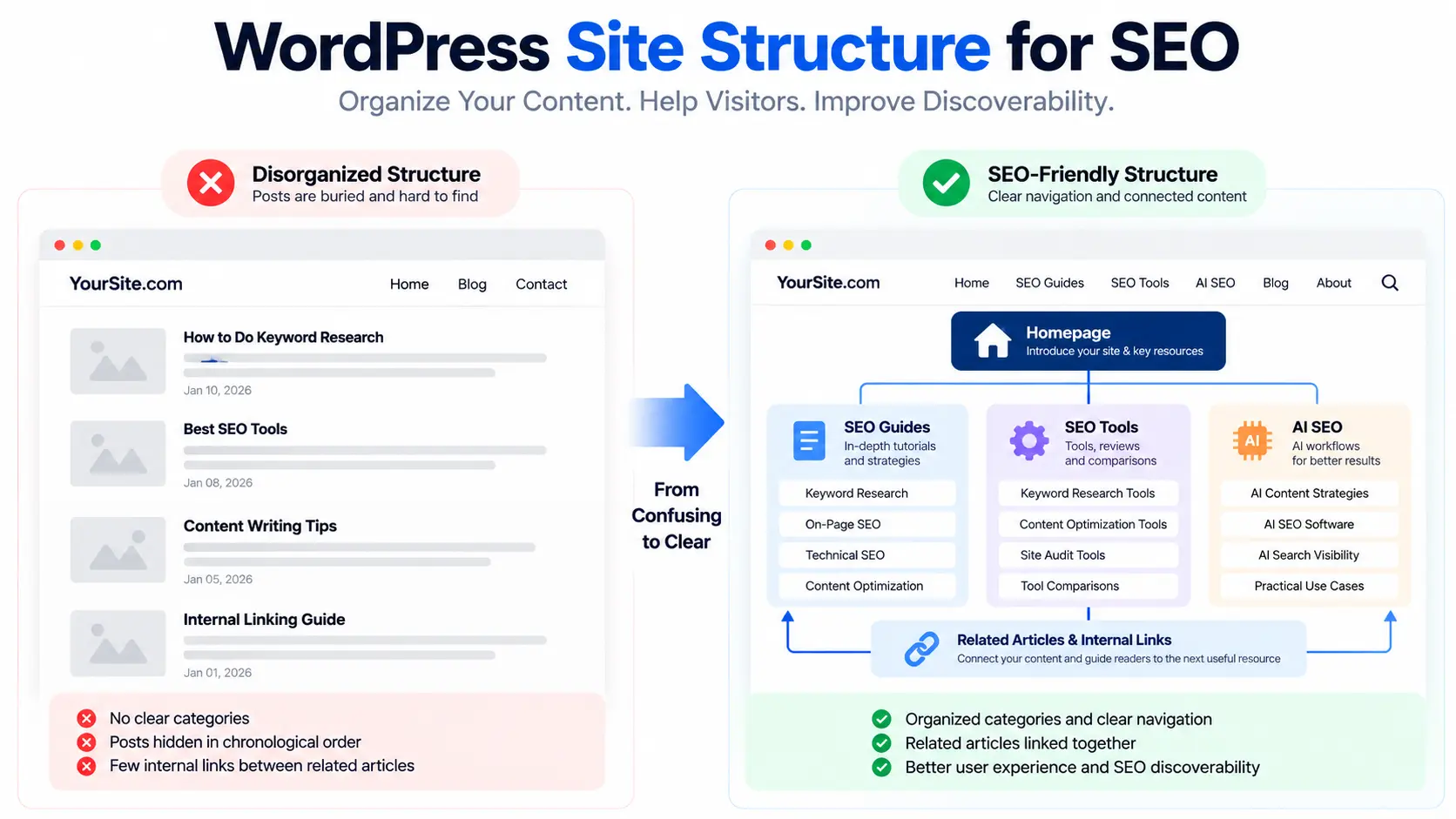
Imagine publishing 40 useful blog posts about SEO, keyword research, and digital marketing. Every article has a different URL, but the navigation only shows “Home,” “Blog,” and “Contact.” Most posts are buried inside a chronological archive, and very few link to one another.
A visitor who reads your keyword research tutorial might never discover your content writing guide. Search engines may also have fewer internal paths to discover related pages.
That is where WordPress site structure for SEO becomes important.
A well-organized site gives readers clear pathways from broad topics to specific answers. It also helps search engines discover pages and understand relationships between them.
In this guide, you’ll learn how to plan a practical WordPress website structure, organize categories, connect related articles, avoid common mistakes, and audit your existing setup without rebuilding everything.
What Is WordPress Site Structure?
WordPress site structure is the way your website’s pages, posts, categories, navigation menus, and internal links are organized.
Think of it as the layout of a library.
The homepage is the entrance. Categories help visitors find different sections. Important guides introduce larger topics, while supporting articles answer specific questions.
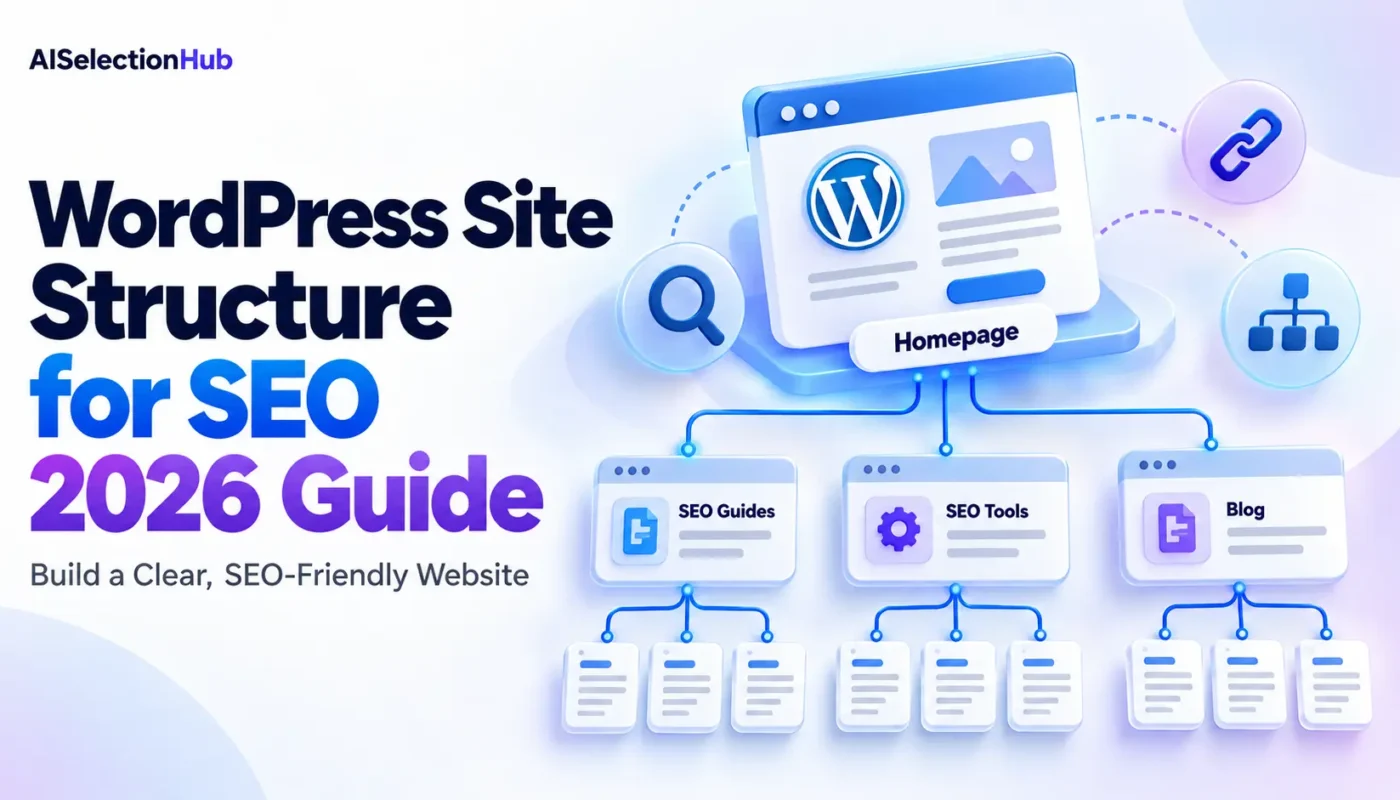
For example, a website focused on SEO could use this structure:
Homepage
SEO Guides
Keyword Research
On-Page SEO
Technical SEO
Content Optimization
SEO Tools
Keyword Research Tools
Content Optimization Tools
Software Comparisons
Blog
About and Contact
This is a conceptual content hierarchy—not a requirement to create a separate WordPress page for every item.
The same website might use individual article URLs such as:
example.com/keyword-research-guide/example.com/on-page-seo-checklist/example.com/best-keyword-research-tools/
Notice that the URL paths don’t have to mirror every level of the navigation.
Site structure involves several separate elements:
| Element | What it does |
|---|---|
| Homepage | Introduces the site and directs users to important content |
| Navigation | Helps visitors move between important sections |
| Categories | Groups related WordPress posts |
| Pillar content | Covers a broader subject in useful depth |
| Supporting articles | Answer specific questions within that subject |
| Internal links | Connect pages based on context and relevance |
| Permalinks | Give each page a stable, descriptive address |
| Breadcrumbs | Show a useful navigational path where appropriate |
A good structure makes these elements work together.
Why Does Website Structure Matter for SEO?
Google’s SEO Starter Guide recommends organizing websites logically and using descriptive URLs and relevant links.
There are several practical reasons.
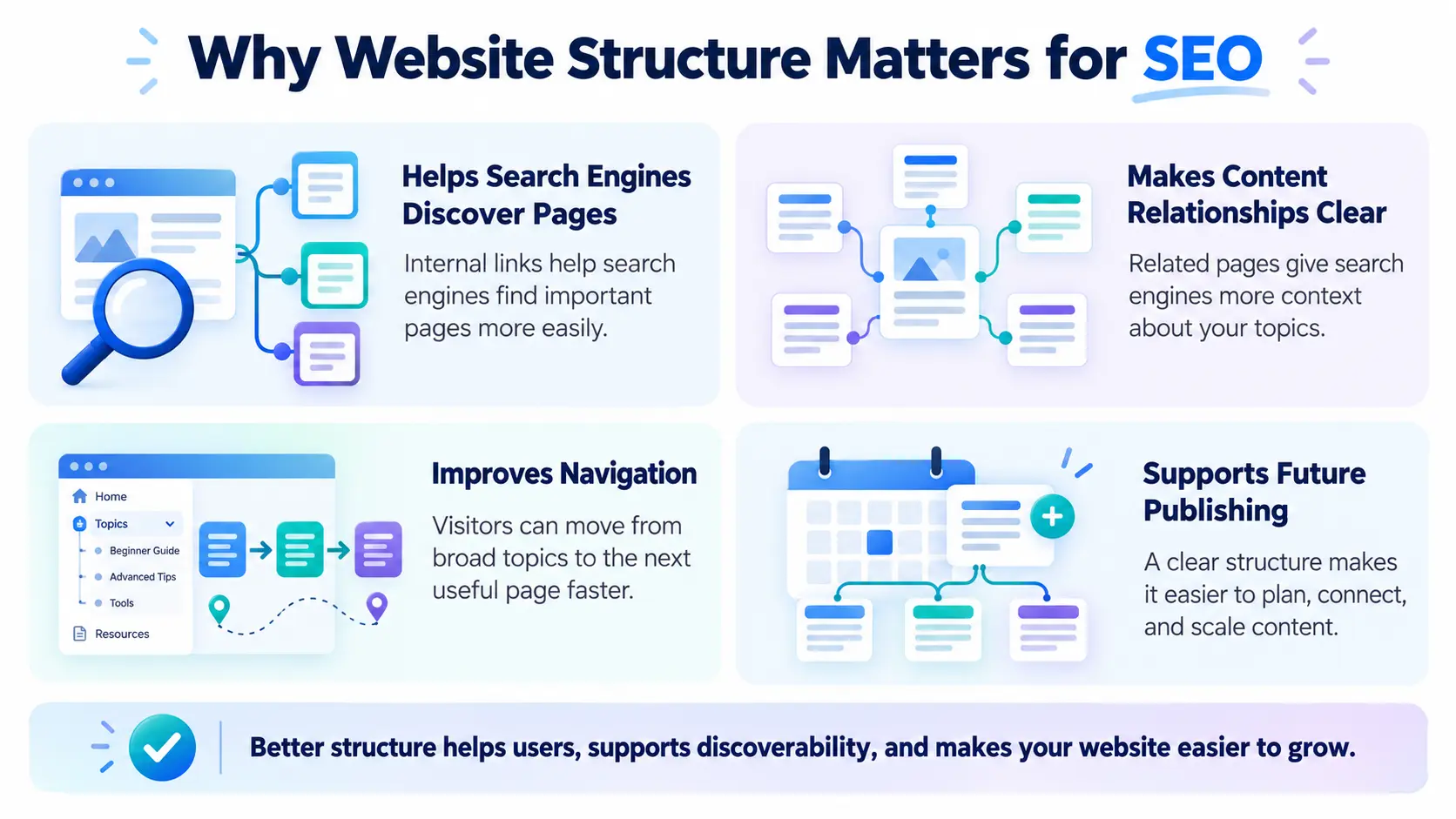
1. It helps search engines discover pages
Search engines find many pages by following links.
If an important article has no incoming internal links, discovery may depend on a sitemap, an external link, or another route.
A sitemap is useful, but it shouldn’t replace an accessible website structure.
Google specifically recommends linking to pages you care about from at least one other page on your website.
2. It makes content relationships easier to understand
Consider these articles:
How to Find Low-Competition Keywords
SEO Content Writing Framework
On-Page SEO Strategy
Internal Linking Strategy
Each article covers a different stage of the SEO workflow.
Connecting them through relevant internal links creates a more understandable reading journey than leaving them disconnected.
That does not guarantee higher rankings. It does, however, give readers and search engines additional context.
For a detailed explanation, see our internal linking strategy guide.
3. It improves navigation
A visitor looking for an SEO audit tutorial shouldn’t have to open six pages of old blog posts to find it.
Clear category links, topic hubs, and contextual recommendations reduce that friction.
The real test is simple: can someone who lands on one of your articles quickly find the next helpful resource?
4. It makes future publishing easier
An organized website gives every new article a purpose.
Before publishing, you can identify:
Which existing topic it supports
Which category it belongs to
What pages should link to it
Which related resources readers may need afterward
This also helps you spot unnecessary content overlap before writing.
Step 1: Plan Your Website Hierarchy Before Editing WordPress
Start with the subjects your audience actually needs, not with WordPress settings.
For a small SEO website, three or four main content sections may be enough.
An example structure could look like this:
Homepage → Main Topics → Important Guides → Supporting Articles
For an SEO and AI software blog, that might mean:
SEO Guides
Keyword Research
Content Strategy
On-Page SEO
Technical SEO
SEO Tools
Keyword Research Software
Content Optimization Software
Site Audit Tools
Tool Comparisons
AI for SEO
AI-Assisted Research
AI Content Workflows
AI Search Visibility
AI SEO Software
Your categories should reflect meaningful differences in content, not every individual keyword you target.
A useful planning exercise is to open a spreadsheet and create four columns:
| Existing page | Main topic | Intended category | Related pages |
|---|---|---|---|
| Keyword research guide | Keyword Research | SEO Guides | Content planning, keyword tools |
| Internal linking guide | On-Page SEO | SEO Guides | Topic clusters, site architecture |
| Keyword tool comparison | SEO Software | SEO Tools | Keyword research tutorials |
| Content audit guide | Content Optimization | SEO Guides | Content refresh, pruning |
This simple inventory often exposes problems before you touch the live website.
You may discover that two articles serve the same purpose, an important topic has no supporting content, or several valuable guides have almost no internal links.
Practical rule: Organize by useful topics and reader journeys. Don’t create a complicated hierarchy merely because a diagram looks impressive.
Step 2: Set Up a Separate Homepage and Blog Page
Many WordPress installations display the latest blog posts on the homepage by default.
That setup can work well for a personal blog or news-style website. But a niche educational website may benefit from a dedicated homepage that highlights its most important resources.
WordPress makes it possible to separate these two functions.
How to configure it
Open your WordPress dashboard.
Go to Pages → Add New.
Create and publish a page named Home, if you don’t already have one.
Create and publish another page named Blog.
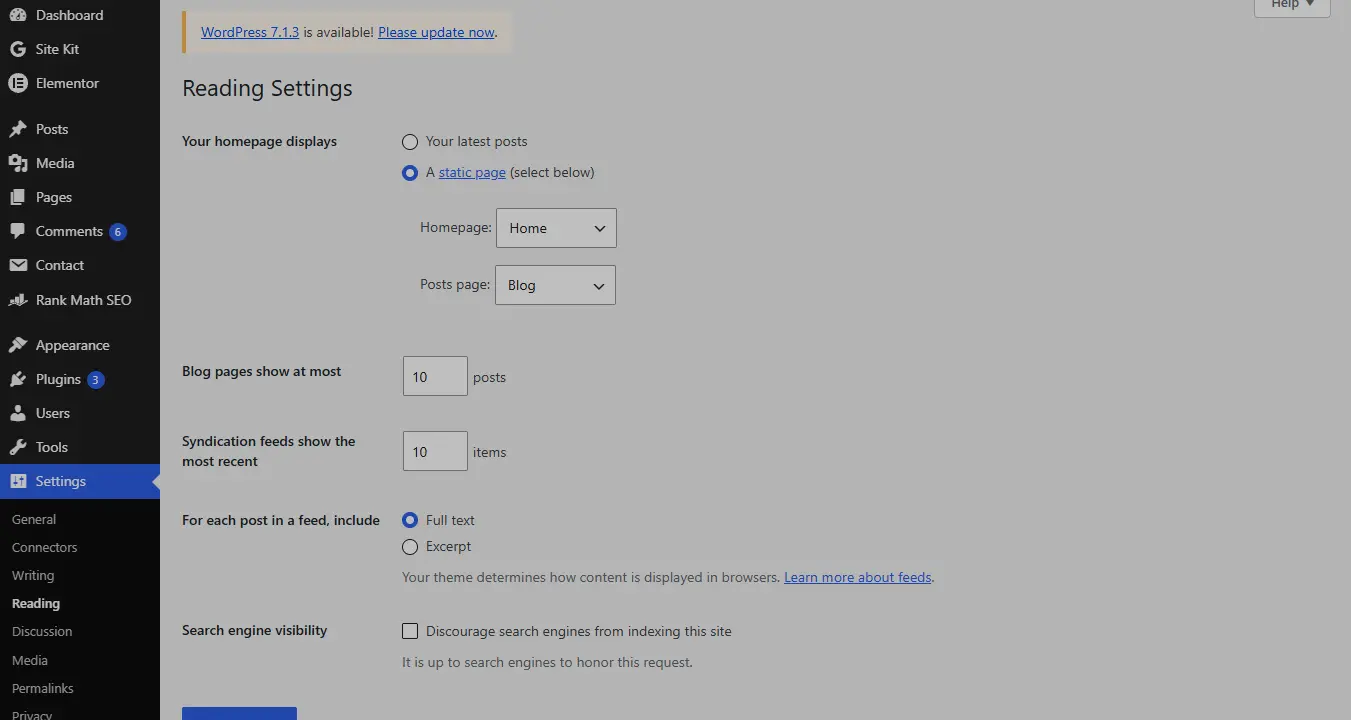
Go to Settings → Reading.
Under Your homepage displays, choose A static page.
Select Home as the Homepage.
Select Blog as the Posts page.
Save your changes.
Your main website address can now show a custom homepage, while the Blog page displays the latest published posts.
An important distinction: setting /blog/ as your posts archive doesn’t automatically move every individual article URL under /blog/.
For example, an article may continue using example.com/internal-linking-guide/ while appearing in the /blog/ archive.
WordPress also uses your theme’s post archive template for the assigned Posts page. Editing the Blog page like an ordinary static page may not change that archive layout.
What should go on the homepage?
For an SEO-focused website, consider:
A clear introduction explaining what the site covers
Important topic categories
Popular software comparisons
Essential tutorials
Recently published posts
An About or editorial methodology section
The homepage should help visitors choose where to go—not force them to scroll through every published article.
A note for Elementor users
If you’re using Elementor, you can build the static homepage with its visual editor.
Elementor Full Width retains the site’s header and footer, while Elementor Canvas removes them. Use the layout that suits your navigation needs.
If your WordPress theme adds sidebars or extra spacing, check the page template and theme layout settings before applying broad CSS changes.
Step 3: Organize WordPress Categories Properly
Categories are one of the simplest ways to organize a WordPress blog, but they’re often used without a plan.
A site with 35 articles doesn’t necessarily need 20 categories.
Instead, it needs a manageable number of sections that each serve a clear purpose.
How to create categories
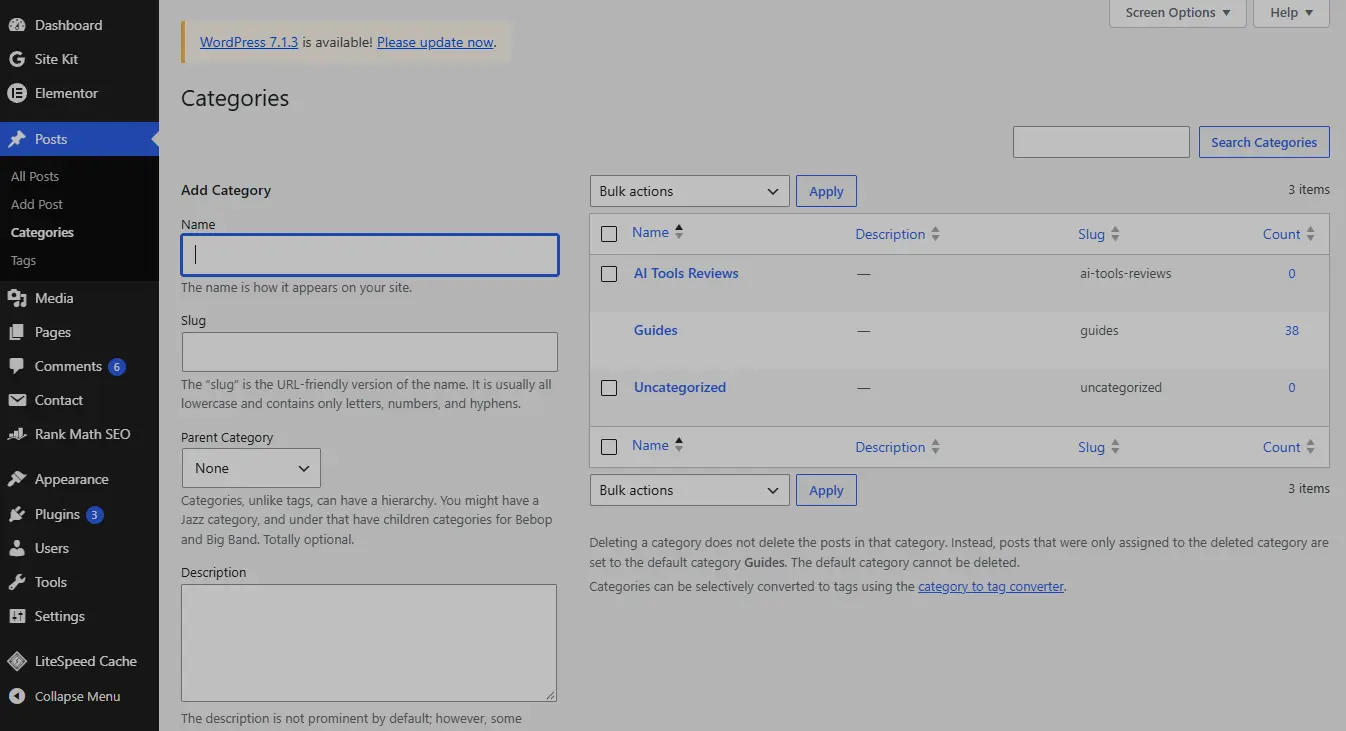
In WordPress, go to Posts → Categories.
Enter a descriptive category name.
Add a short, readable slug.
Write a helpful category description.
Choose a parent category only if a hierarchy genuinely helps navigation.
Click Add New Category.
For example:
| Category name | Suggested slug |
|---|---|
| SEO Guides | seo-guides |
| SEO Tools | seo-tools |
| AI SEO | ai-seo |
| Tool Comparisons | tool-comparisons |
These are example labels. You should choose categories that accurately reflect the content already on your website.
Categories vs tags: what’s the difference?
Categories organize larger groups of posts.
Tags can describe narrower attributes that may apply across different categories.
For example, “SEO Guides” could be a category, while “Google Search Console” might be a tag.
However, tags are optional.
Creating a separate tag for every keyword can produce many thin archive pages with little value to visitors.
Start with a small, useful category system. Add tags only when they improve discovery and navigation.
Should category pages be indexed?
There is no universal answer.
A category archive may be valuable in search if it has a clear purpose, useful introductory content, and a well-organized collection of relevant articles.
An empty or nearly duplicate archive may have little independent search value.
Review the archive itself before deciding whether it should be indexable. Avoid automatically indexing or noindexing every category without checking its function.
Step 4: Use Clear and Consistent WordPress Permalinks
A permalink is the permanent address of a page or blog post.
WordPress supports different URL patterns, including post-name-based URLs.
A descriptive URL is easier to understand and share than one containing only an arbitrary identifier.
Compare:
Less descriptive:example.com/?p=1847
More descriptive:example.com/wordpress-site-structure-seo/
The second URL communicates the subject immediately.
How to review your permalink settings
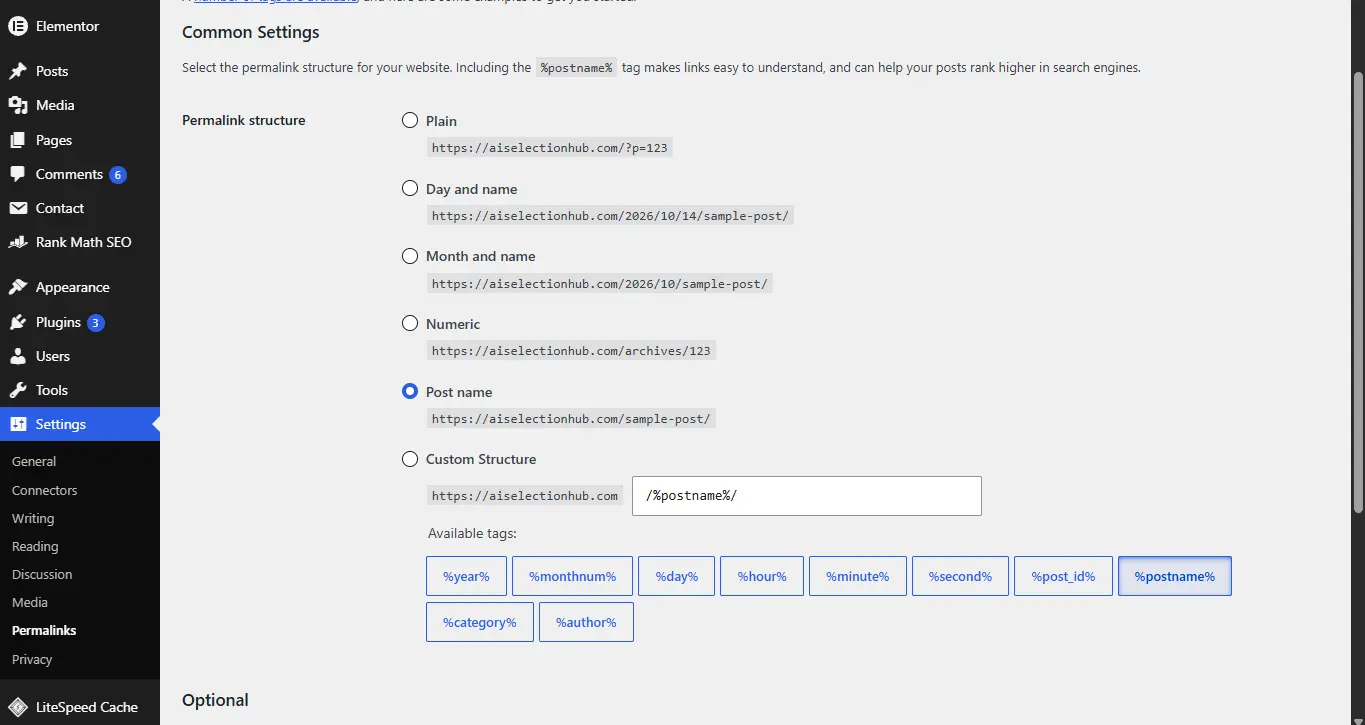
Open Settings → Permalinks.
For many new content websites, the Post name option is a straightforward choice.
But there’s an important warning.
Do not change your entire permalink structure just because someone recommends a cleaner format.
On an established website, changing URLs can break existing links and create unnecessary redirect work.
If a URL must change:
Identify the old URL and its incoming links.
Create the replacement URL.
Implement a permanent 301 redirect.
Update internal links to use the new URL directly.
Confirm that the redirect works.
Monitor the change in Google Search Console.
Also avoid stuffing URLs with repeated keywords.
A concise, descriptive slug is usually more useful than a long phrase designed only to satisfy an SEO plugin’s score.
Step 5: Connect Pillar Articles and Supporting Content
A pillar article explains a broad subject, while supporting articles explore specific related questions.
This content model can make a large website easier to navigate.
For example, a site might publish a broader guide about building topical authority.
Related articles could cover:
Keyword research
Content gap analysis
SEO content writing
Internal linking
Website architecture
Content audits
The supporting articles should link to the broader resource when relevant, and the broader resource should direct readers toward useful detailed guides.
You can see how this approach connects to our guide on building topical authority.
Does every topic need a pillar page?
No.
Some subjects are better addressed with one excellent article rather than several shallow supporting posts.
Only create additional content when it answers a distinct question or satisfies a meaningfully different search intent.
For example:
“What is keyword research?” explains the concept.
“How to find low-competition keywords” demonstrates a process.
“Best keyword research tools” helps readers compare software.
Those are related, but each has a different job.
By contrast, three articles explaining the same benefits of keyword research with slightly different titles may overlap unnecessarily.
Building topical depth isn’t about publishing the greatest number of pages. It’s about answering the right questions clearly.
Step 6: Build Internal Links That Actually Help Readers
Internal links are the connections between pages on your own website.
They can appear in navigation menus, breadcrumbs, related-article sections, or within the main article content.
Contextual links are especially useful when a reader needs more detail about a subject.
Imagine someone reading this website architecture guide.
If they want to understand how to organize a cluster of articles, the topical authority guide is relevant.
If they’re trying to improve individual page elements, the on-page SEO strategy article is a better next step.
And if they’re evaluating underperforming posts, they may benefit from an SEO content audit.
Each link serves a different purpose.
Use descriptive anchor text
Anchor text is the clickable text in a link.
Compare:
Weak: Click here to learn more.
Better: Read our on-page SEO strategy.
The second example helps people understand what they’ll find on the linked page.
Google recommends concise, relevant anchor text and links that can be crawled through normal HTML link elements.
How many internal links should an article have?
There isn’t a universal number.
A short answer page may need only a few. A comprehensive technical guide may naturally include more.
Don’t force five or ten links into an article to satisfy a formula.
Instead, ask whether each link makes the next step easier for the reader.
Don’t forget links from older articles
A common publishing habit is to link from new articles to old ones, then stop.
But older articles may already have traffic, backlinks, and interested readers.
Whenever you publish a new guide:
Add relevant links from the new article to existing content.
Identify older articles that should link to the new guide.
Update outdated navigation or resource sections where necessary.
This creates two-way discoverability without turning every article into a collection of unrelated links.
Step 7: Find and Fix Orphan Pages
An orphan page is a page with no incoming internal links within the part of the website you’re auditing.
It may still appear in an XML sitemap or receive external links, but visitors have fewer internal pathways to discover it.
Important orphan pages deserve attention.
How to find them
You can use a website crawler and compare its results with your XML sitemap or known WordPress URLs.
Look for pages that exist on the website but are not discovered through normal internal links.
Then evaluate each one.
Ask:
Is this page useful and intended to attract visitors?
Should it be linked from a category, hub, menu, or related article?
Is it old content that should be updated or consolidated?
Is it intentionally excluded from navigation?
Not every orphan URL is an error.
A temporary campaign page, for example, may serve a purpose without appearing in normal blog navigation.
For valuable SEO articles, though, relevant internal links are usually preferable to leaving them isolated.
Step 8: Review Navigation, Breadcrumbs, and Archives
Navigation should make sense to a new visitor who doesn’t already know your website.
For a smaller SEO blog, a menu might contain:
Home | SEO Guides | SEO Tools | Comparisons | Blog | About
There’s no need to place every article in the top navigation.
Instead, use relevant section pages or category archives to help people explore.
Breadcrumbs
Breadcrumbs are another navigation aid.
For example:
Home → SEO Guides → WordPress Site Structure
They can help visitors understand where they are and return to broader sections.
If you use breadcrumb structured data, it should represent a sensible user path and accurately describe the corresponding pages.
However, adding breadcrumb markup is not a guaranteed way to receive enhanced search-result displays.
Category archives
Make sure useful categories are actually accessible through navigation or contextual links.
A category that exists in WordPress but can’t be found easily by visitors offers limited navigational value.
Pagination
If your blog has many posts, pagination helps users access older articles without displaying every post on one enormous page.
Check that the archive’s next-page and previous-page links work, and that visitors can reach older relevant content.
You can also surface your most important evergreen articles independently of the chronological archive.
Step 9: Check Technical Settings That Support Your Structure
A well-designed hierarchy won’t help much if important pages are accidentally excluded from search or internal links don’t work.
After organizing the website, check these essentials.
XML sitemap
Confirm your sitemap includes the canonical, indexable content you want search engines to discover.
WordPress and SEO plugins can generate sitemaps, but the exact URL depends on your setup.
Submit the correct sitemap in Google Search Console if it isn’t already submitted.
Indexing settings
In WordPress, check Settings → Reading and make sure the option to discourage search engines from indexing your website isn’t accidentally enabled when you want a public, searchable site.
Then use Google Search Console to inspect important individual URLs.
Canonical URLs
Pages that have duplicate or alternative URL versions should use appropriate canonical signals.
Avoid creating several URLs that display essentially the same article unless there’s a legitimate reason.
Mobile navigation
Test the homepage, blog archive, category pages, and articles on a phone.
A navigation system that works on desktop can still be frustrating on smaller screens.
Check that menus open correctly, category links are tappable, and important content is easy to reach.
Redirects and broken links
After restructuring pages or menus, inspect important internal links.
Redirects aren’t automatically errors, but your own navigation should generally point directly to the preferred final URLs rather than unnecessarily passing through redirects.
Step 10: Audit Your WordPress Structure Without Starting Over
You don’t need to redesign every URL or category at once.
A simple structure audit can reveal the changes worth making.
The practical audit process
First, list the important pages.
Export your sitemap, crawl the website, or create an inventory from WordPress.
Next, group related content.
Identify your main subjects and assign each useful article a logical place in the site.
Then, inspect internal links.
Look for important pages with few or no incoming internal links.
After that, review categories and navigation.
Remove unnecessary complexity and make the most useful sections easy to discover.
Finally, measure what changes.
Use Google Search Console to review indexing, queries, impressions and clicks over time.
Don’t assume a traffic increase was caused by a site-structure change simply because the two happened close together. Rankings and traffic can change for several reasons.
A practical example
Suppose an SEO blog has 40 published articles and only one broad “Guides” category.
Its homepage links to the six newest posts, while older content is accessible mainly through archive pagination.
A sensible improvement could include:
Creating a small number of meaningful topic categories.
Featuring the most useful cornerstone guides on the homepage.
Adding relevant links between related tutorials.
Improving category descriptions and navigation.
Checking whether important older articles are reachable.
The goal isn’t to manufacture an SEO score. It’s to make the existing content more useful and discoverable.
Common WordPress Site Structure Mistakes
Creating too many categories
A category with only one article doesn’t automatically deserve its own archive.
Create categories based on genuine navigation needs and sustainable topic coverage.
Confusing URLs with content hierarchy
A post doesn’t need a deeply nested URL to belong to a meaningful category or topic cluster.
Your menus, archives, breadcrumbs, and internal links can communicate relationships even when the permalink is simple.
Treating the three-click rule as a strict ranking factor
Making important pages easy to find is sensible, but there is no universal requirement that every page be exactly three clicks from the homepage.
Focus on useful navigation and unnecessary depth rather than chasing an arbitrary number.
Changing existing URLs unnecessarily
A cleaner-looking URL is not always worth the cost of changing an established address.
Preserve stable URLs unless there’s a clear benefit to changing them.
Publishing overlapping articles
Multiple pages can legitimately cover related subjects.
Problems arise when pages provide almost identical answers without a distinct purpose.
Review search intent before creating another article around a slightly different keyword.
Forgetting the user journey
A website can be logically organized in a spreadsheet while still being confusing to use.
Test whether someone can find the information they need without understanding your internal category system.
A Seven-Day WordPress Site Structure Improvement Plan
You can make meaningful improvements without attempting everything in one afternoon.
| Day | Action |
|---|---|
| Day 1 | Inventory existing posts, pages, and categories |
| Day 2 | Identify main topics and remove unnecessary category complexity |
| Day 3 | Improve the homepage and blog navigation |
| Day 4 | Identify important pillar and supporting articles |
| Day 5 | Add contextual internal links and fix relevant orphan pages |
| Day 6 | Check permalinks, indexing, breadcrumbs, and mobile navigation |
| Day 7 | Validate important URLs and record a Search Console baseline |
Prioritize changes that make your best content easier to discover.
You don’t need to implement every possible technical improvement to have a useful, understandable website.
WordPress Site Structure Checklist
Before considering your structure complete, check that:
The homepage clearly explains the website’s purpose.
Important topics have logical navigation paths.
WordPress categories are useful and not unnecessarily duplicated.
Each important article has relevant incoming internal links.
Navigation and contextual anchor text are descriptive.
Important URLs are stable and readable.
The blog archive and pagination work.
Important pages aren’t accidentally blocked from indexing.
Mobile navigation is usable.
New articles connect to relevant existing content.
A website structure should evolve as its content grows. Review it periodically, particularly when introducing an entirely new topic area.
Frequently Asked Questions
What is the best WordPress site structure for SEO?
For many small blogs, a clear homepage, a manageable number of useful categories, well-organized articles, and relevant internal links provide a practical foundation. The best structure depends on the site’s content and audience.
Should I put all WordPress posts under /blog/?
Not necessarily. A /blog/ archive can display all your posts while individual articles use shorter, independent URLs. Both arrangements can work; consistency and stable URLs matter more.
Are categories or tags better for WordPress SEO?
Categories are generally more useful for organizing broad groups of posts. Tags can support narrower organization, but they’re optional. Avoid creating large numbers of archives that provide little value.
Do internal links help Google discover new pages?
Yes. Google uses crawlable links to find pages and understand contextual relationships. Internal links are useful for discovery, although adding them doesn’t guarantee indexing or ranking improvements.
Should I change old WordPress URLs to improve my SEO structure?
Only when there’s a clear reason. Changing established URLs unnecessarily can create broken links and redirect work. When a change is justified, use the appropriate permanent redirects and update internal links.
Can I improve WordPress site structure without premium SEO plugins?
Yes. WordPress already includes pages, categories, menus, post archives, and permalink settings. Paid tools can help with auditing, but the core organizational work doesn’t require a premium plugin.
Final Thoughts
A good WordPress website structure isn’t about making your website look complicated or following every SEO checklist on the internet.
It’s about helping visitors move naturally from one useful page to the next.
Start by identifying your main topics. Organize articles into meaningful groups, make your best resources easy to find, and connect related content with clear internal links.
If your website already has dozens of articles, begin with the existing content instead of rebuilding everything.
Sometimes the most valuable improvement isn’t publishing another post. It’s making sure readers can discover the useful articles you’ve already published.
Official resources for further reading